
Turn a Selfie Into a LinkedIn Headshot
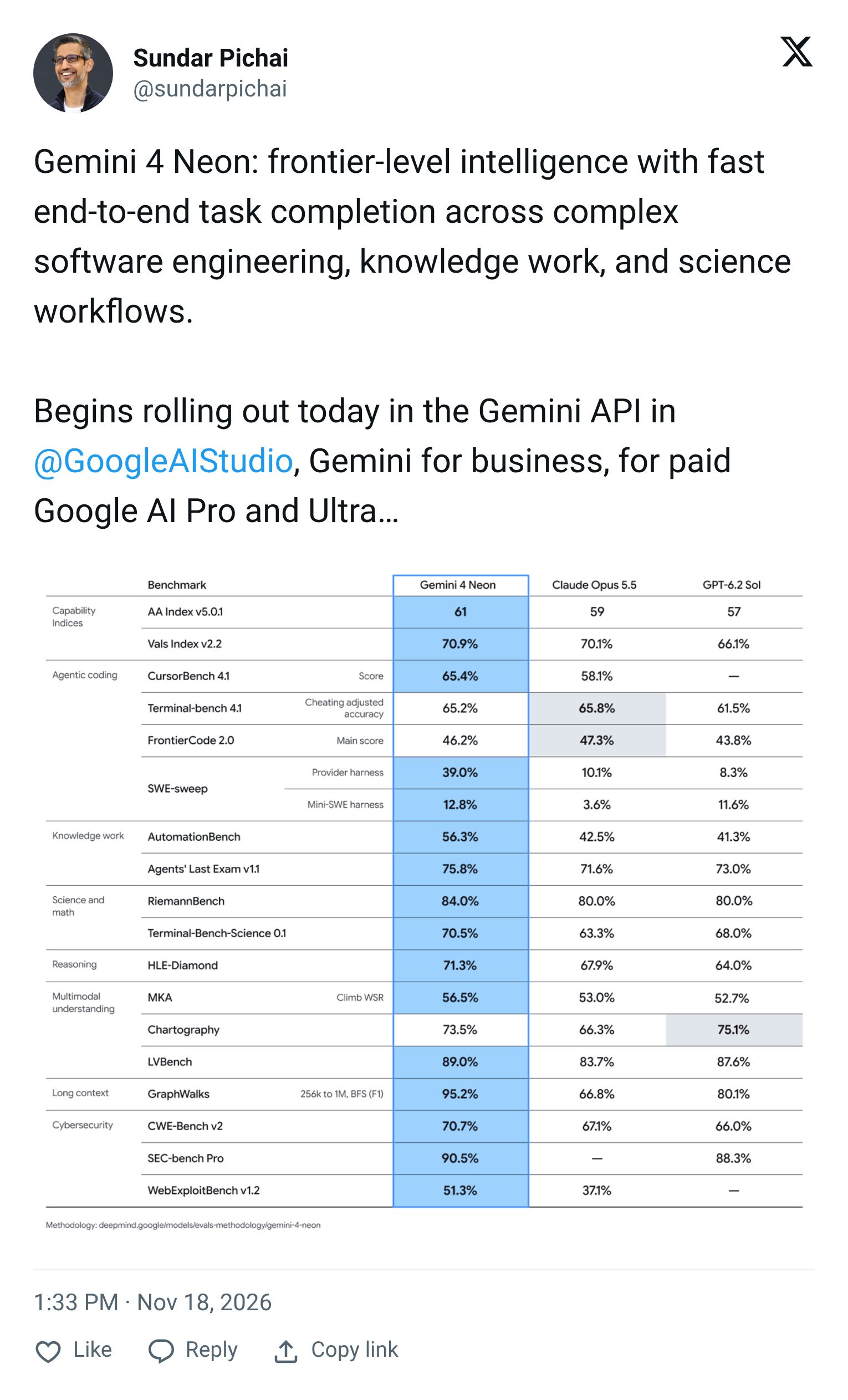
Google launches Gemini 4 Neon
Today in FriTorial 🔥
Your Best Closers Shouldn’t Be Stuck Doing $20 Tasks

Sponsored
Your top salespeople should be spending their time creating revenue. Instead, they’re updating CRM records, scheduling meetings, chasing signatures, and managing the administrative work surrounding every deal. Those tasks matter, but they’re not the highest-value use of your most expensive talent. The free guide 5 Reasons You Aren’t Hitting Quota: The Sales Operations Gap Examined helps sales leaders identify the operational gaps that can pull reps away from selling. BELAY supports sales teams by matching them with U.S.-based Sales Assistants who manage the work around the sale, from CRM management and lead routing to follow-up
— 01
How to Turn Any Selfie Into a Professional Headshot with ChatGPT
2 minute read · Works on the Free plan · Web, iPhone and Android
ChatGPT can turn an everyday selfie into a professional headshot for LinkedIn, resumes, or social media. You can change the outfit, lighting, and background while keeping your appearance recognizable.
Step 1: Upload Your Selfie
Open ChatGPT, click the + button beside the prompt box, and select Add photos and files.
Upload a clear selfie taken at eye level, with your face visible and no sunglasses.
Step 2: Enter Your Headshot Prompt
Instead of simply asking ChatGPT to make your photo professional, use a prompt that preserves your facial features while changing the outfit, lighting, and background.
For example:
Use my uploaded selfie to create a realistic professional headshot.
1. Preserve my facial features, face shape, skin tone, eyes, smile, hairline, and natural skin texture. Keep my identity recognizable without smoothing or reshaping my face.
2. Tidy my hair so it looks neatly styled, keeping its length, texture, and shape. Dress me in a tailored navy blazer over a simple shirt. Avoid heavy retouching or artificial looking skin.
3. Create a square, chest up studio portrait with my shoulders turned slightly to one side and my face toward the camera. Use soft light from one side so the face has gentle shadows, and a light gray background with a subtle gradient. Make it suitable for LinkedIn or a resume.
Submit the prompt to generate your headshot.

Step 3: Review Your Headshot
ChatGPT will create a studio portrait using your selfie as the reference.
Compare it with your original photo and check the facial features, eyes, hairline, and skin texture. Ask for adjustments if anything looks unnatural.
Step 4: Create a Social Media Version
Stay in the same conversation and enter a follow up prompt to create a more casual version.
For example:
Keep my facial features, face shape, skin tone, eyes, smile, hairstyle, and natural skin texture the same, and keep the same square framing. Change only the outfit and background: replace the blazer with a casual knit sweater and use soft natural daylight with a warm background. Make it suitable for a social media profile picture.
Review the result and download your preferred versions.

With this method, you can create different profile pictures for LinkedIn, resumes, portfolios, and social media from a single selfie. Just change the outfit, background, or lighting to match where you want to use the photo, without arranging a new photoshoot.
Want the details? Read OpenAI’s guide to images in ChatGPT ↗
Note: ChatGPT creates a new image from your photo rather than retouching it, so small details can change. If you use the headshot for job applications, make sure it still looks like you.
More ChatGPT image tips: ChatGPT Lets You Try Before You Buy (FriTorial#101) ↗

Explore 95+ AI tutorials like this one and 2,789+ curated AI resources from 97+ AI creators on LinkedIn, packed with step-by-step guides and ready-to-use prompts.
— 02
Trending AI Tools
  LemonTalk instead of typing to write AI prompts · Free to start |
  Zoom SlidesTurn meeting notes and briefs into slide decks with AI · Part of Zoom's AI Suite |
  Pharen HubKeep AI chat, docs, projects, mail and meetings in one workspace · Free for up to 3 members |
  readywhenA personal assistant you can call, text or email to get real work done · Free to start |
  Qwen4-MaxAlibaba's newest flagship model with a one million token context window for long tasks · Available on QwenCloud |
— 03
Google Vids: Make Short AI Videos for Free
Free plan with three 15 second AI videos a month; paid plans for more.

Google Vids is an AI video maker from Google that turns a prompt or a photo into a short video you can edit and share.
Top Features:
15 Second AI Clips: Describe a scene or upload a photo, and Vids creates a clip up to 15 seconds long with natural sounding narration.
Reference Images: Add a photo of a person, product, or place so characters and scenes stay consistent from clip to clip.
AI Avatars: Choose an avatar, type your script, and it presents your message in one of 24 languages.
Try a product promo first: upload a photo of something you sell as a reference image and describe a 15 second ad.
— 04
Google’s new AI codes like Claude for less
— 05
Free Playbook: Is That Black Friday Deal Real?
New this week: a free playbook you can save. 6 copy-paste prompts to check any Black Friday deal before you buy.

Free PDF. Opens in your browser.
— 06
Real or AI?

Is this image Real or AI-Generated?
— 07
Real or AI Result

Congrats to 69.77% of you who got it right. It was Real. That was a tough one 😁
munsm9 picked AI-Generated: “It's AI generated, as the lights are different from each angle and the shadows too.”
Feedback
We’d love to hear from you!
Know someone who may be interested?
And that's a wrap on today's FriTorial!

